How to Connect a PS4 Controller to a PC (Bluetooth, USB, Steam)
A lot of PC gamers eventually get curious about console controllers, and honestly, I can’t blame them.
The PS4 controller feels comfortable, with responsive buttons and smooth sticks that work great for shooters or racing games.
Connect a PS4 controller to a PC might feel a little tricky at first, but it’s actually not.
So today, let’s walk through the connect process. By the time you finish reading, you’ll be ready to play without feeling stuck.
When I tried this the first time, Windows didn’t recognize it right away, and I panicked for a moment. I unplugged it, plugged it back in, and suddenly it just worked. That tiny success gave me this silly grin, even though it was such a small thing. Anyway, expect a few tiny hiccups, but you’ll get there.
Connecting With USB
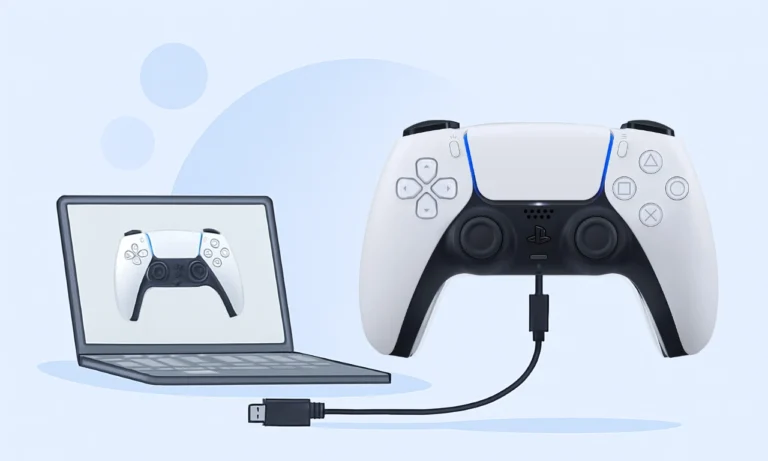
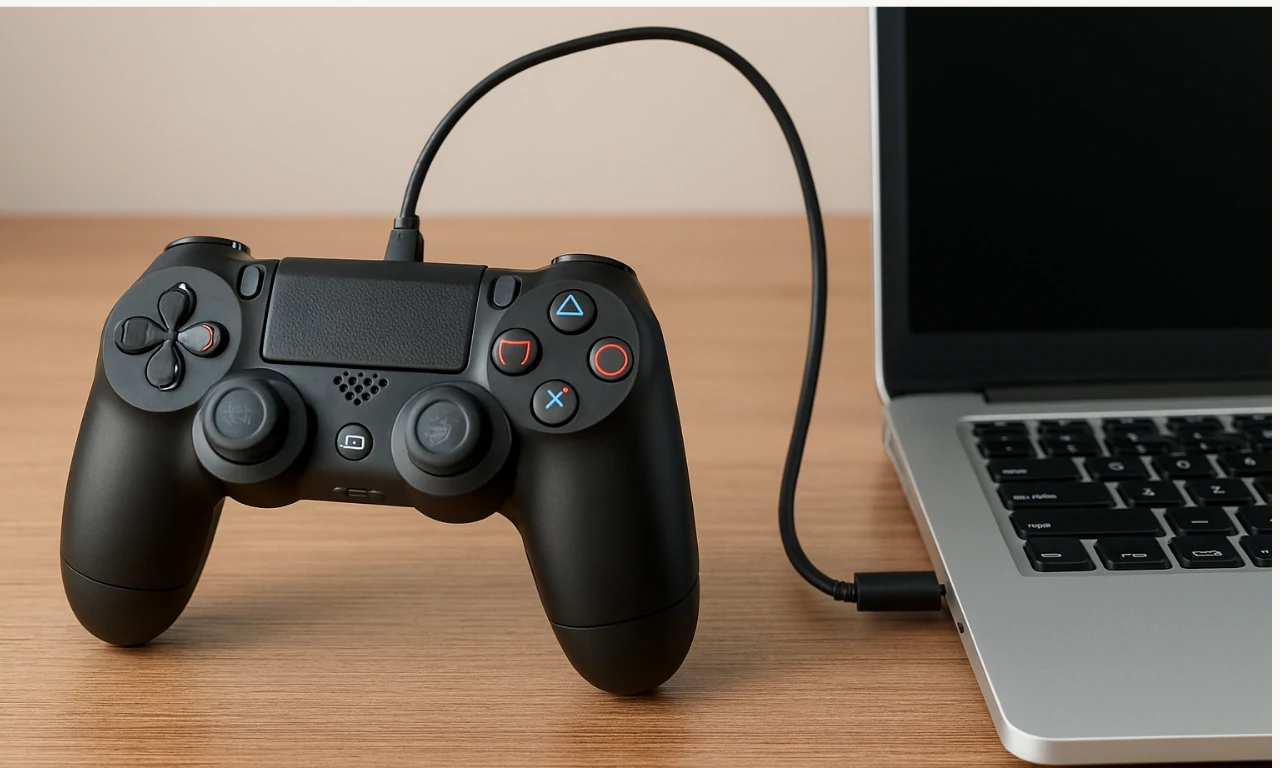
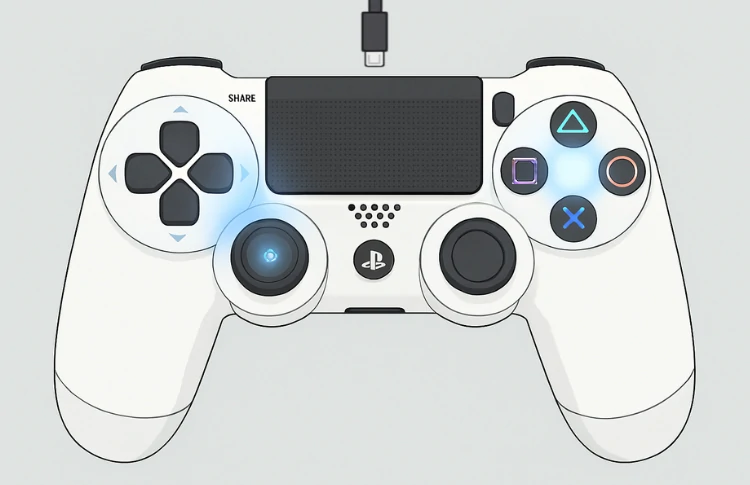
Most people start with a regular USB connection because it’s simple. You just grab a micro-USB cable, plug one end into the controller and the other into your PC. After a second or two, Windows should pick it up. If you open a game that supports controllers, you’ll probably notice movement instantly.
When I tried first time on Forza Horizon 5, the steering felt smooth, but triggers were a bit sensitive. I had to tweak the settings later.
Besides, the cool part about wired play is zero battery worries.
Sometimes Windows acts weird. If nothing happens at all, try another USB port. I once used the front port of my PC, and the controller kept disconnecting, so I switched to the back port. It felt silly, but that fixed everything.
So, if your controller refuses to cooperate, don’t panic. Try moving the cable, change the port, or even restart your computer. Also, using a higher quality cable matters because some charging cables don’t transmit data. That’s a thing you realize way too late.
Connecting Over Bluetooth
You’ll need a Bluetooth stick to connect a PS4 controller to a PC (Laptops have built in Bluetooth adaptor). Anyway, just hold the Share and PS buttons on your controller until the light bar starts flashing.
Then open Windows settings, find Bluetooth, and pair the device called Wireless Controller.
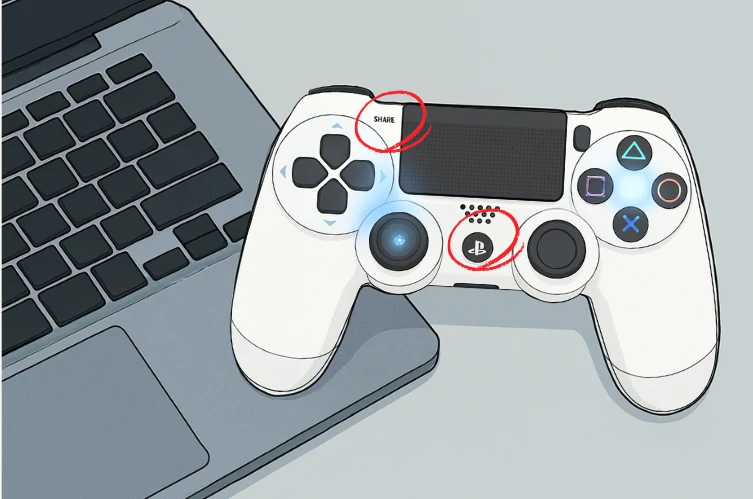
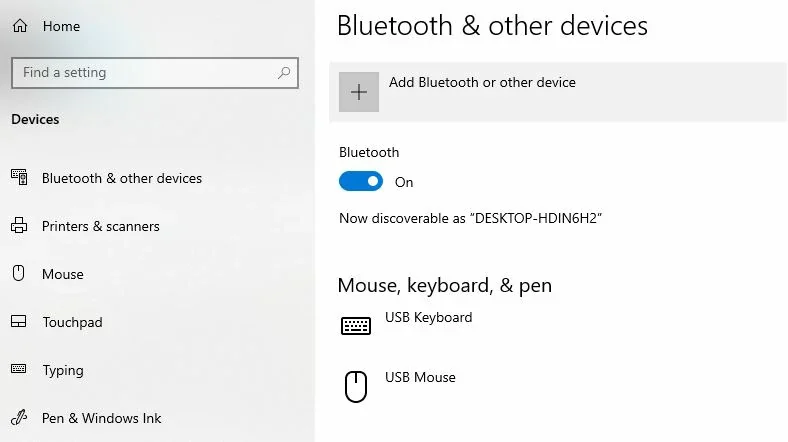
When I tried pairing on my older laptop, Bluetooth ignored it the first time, so I toggled the Bluetooth switch off and on like some confused caveman. Pretty annoying, but after that, the controller appeared instantly and paired smoothly.
On the flip side, keep the controller close to the PC for the first pairing. If you paired from across the room, the connection might drop often enough to make you groan.
Bluetooth works great for casual play, but competitive players might notice tiny lag. Not much, but noticeable if you’re picky. Still, most people won’t feel bothered by it.
Now, here’s something funny. Sometimes Windows pairs the controller as an audio device, and then your PC suddenly thinks the controller is a headset. The audio goes silent, and you stare at the screen confused. To fix that, open sound settings and switch your output device. Weird, I know, but it sometimes works that way. If Bluetooth keeps acting weird, try restarting the Bluetooth service in Windows. It feels like black magic, but it fixes stuff.
Using DS4Windows
Here’s where things get more interesting. Some games don’t support the PS4 controller’s native layout. So, to connect a PS4 controller to a PC for games that need Xbox mapping, you can use DS4Windows. It tricks Windows into thinking the controller is an Xbox controller. When I installed it, I expected a huge mess of settings, but the setup wizard guided me gently. After installation, everything suddenly worked in every game that previously ignored the PS4 controller. That was a nice little moment.
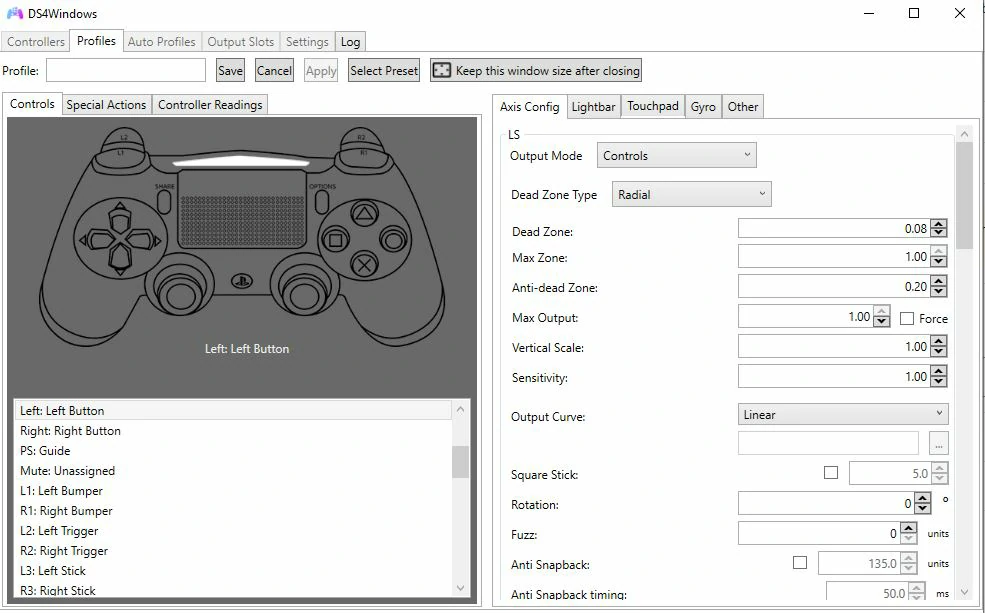
Launch DS4Windows, plug your controller in, and watch it show up instantly. You can adjust sensitivity curves, remap buttons, and even change light bar brightness if you feel fancy. But don’t dive too deep unless something feels off. Sometimes less is more. DS4Windows also helps reduce input issues if a game refuses to detect the controller at all. So, if a game gives you the cold shoulder, try this tool.
Connecting Through Steam
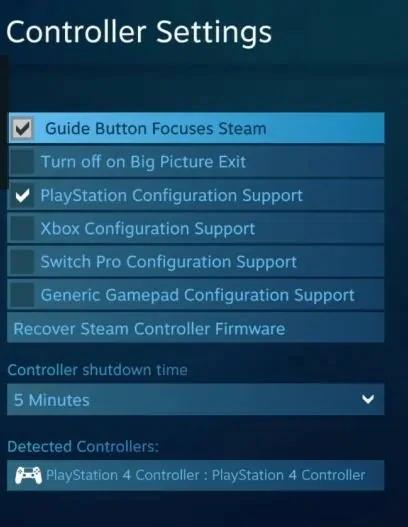
Steam deserves its own spotlight because its controller support has grown massively. Open Steam, head into Big Picture Mode, then open controller settings. You’ll see options to enable PlayStation configuration support. When I turned this on, buttons inside games suddenly made more sense, and prompts appeared correctly. I thought that was neat.
Some games supported the controller instantly. Others needed layout tweaks. But Steam’s remapping actually feels fun if you’re into custom layouts. I made one weird layout once where the touchpad opened maps, and honestly, it felt more natural than expected. Besides, Steam stores layouts per game, so you don’t have to redo everything every time.
A tiny realization here: if Steam isn’t running, some controller-aware features don’t work. So keep Steam open, even if you launch the game outside Big Picture Mode. It’s easy to forget, then you wonder why something broke.
Troubleshooting Common Issues
Controllers can act up sometimes. If your controller refuses to show up through Bluetooth, first try removing it from your device list, reboot Windows, and pair again. Sometimes Windows gets confused and caches something weird.
For USB issues, switch cables or ports.
And if Steam doesn’t detect the controller, toggle PlayStation support on and off once. Sounds silly, but sometimes flipping that switch wakes it up.
And if your analog drift feels off, open Steam’s calibration screen. Drag the sliders gently, test movement, and apply changes. When I did this once, the difference shocked me. My character stopped walking sideways like they were dizzy, so that was a relief.
One trick fix I discovered accidentally involves turning the controller off completely. Hold the PS button until the light goes out, then reconnect. That tiny reset can solve connection weirdness.
A funny yet oddly effective fix is blowing compressed air into the USB port if dirt hides inside. Yeah, it sounds ridiculous, but dust can block connection pins.
Playing Games Outside Steam
Honestly, some games outside Steam ignore the PS4 controller outright. That’s where DS4Windows shines again by pretending the controller is an Xbox controller. You can boot it, run the non-Steam game, and everything should respond normally. If the game still ignores it, try running DS4Windows as an administrator. Normally, I don’t love admin mode, but sometimes it just works.
Wireless Battery Thoughts
Battery life matters more than you think, (roughly 4 to 8 hours of gameplay on a full charge). If your controller disconnects mid-fight, you’ll want to scream. I once lost a boss fight because the controller decided to nap. So, charge before gaming sessions. And if Bluetooth drops randomly, low battery might be the reason. When it hits red, plug it in or take a short break. Snacks help with cooldown stress.
Mapping Touchpad Clicks
The PS4 touchpad sometimes acts strange on PC. Some games ignore it completely. But Steam can map it to a button or even turn it into a mouse.
I once made the touchpad behave like a scroll wheel. Not perfect, but fun to experiment with. If it ever acts laggy, reduce sensitivity in Steam settings.
Why Use a PS4 Controller on PC?
Comfort.
Familiarity.
And sticks that feel natural.
When you connect a PS4 controller to a PC, you get this soft grip that many generic controllers lack. And the triggers feel great for racing. The controller’s size fits many hands comfortably.
Yeah, this choice isn’t just random; it’s honestly smart.
Testing Your Controller
After connecting, you’ll want to ensure every button responds correctly. Little delays matter more than people realize. If a game feels off, you can test your controller with Gamepad Tester later. It gives you on-screen visuals, so you’ll see if something misbehaves.
Weird but Sometimes Works Fixes
Turn off every Bluetooth device nearby. I know, that sounds dramatic, but I once found a wireless speaker interfering. Turned it off, and the controller stopped dropping connection.
Another strange trick is disabling Steam overlay for some games. It sometimes frees input priority, making the controller smoother.
And if nothing helps, restart Windows Bluetooth service. Every time I do that, I whisper to myself like it’s a secret hack.
Wrapping Up
Connecting the PS4 controller to your PC gives a new gaming experience. Whether you prefer the clean wired feel or the comfy wireless setup, both options works well once you get used to them. You might have tiny struggles, but once the controller lights up and responds perfectly, you have all done.