
How to Connect and Test a PS5 DualSense Controller on PC (Step by Step Guide)
You’re not alone who tried playing your favorite PC game and thought, “Man, this would feel so much better with my PS5 controller.”
The DualSense (PS5 controller) is not just sleek; it’s one of the best gamepads around.
Its triggers, grip, and haptics are all just like a dream in your hands. But it’s a bit confusing for most of us to know how to connect and test it with a PC if we’ve never done it before.
After reading this guide, connecting, testing, and troubleshooting your PS5 DualSense on any PC will take no time at all.
Let’s jump right in.
What You’ll Need Before You Start
Before you start plugging things in, check if your computer is ready. You’ll need a Windows 10 or Windows 11 system on your desktop or laptop (USB-C type or Bluetooth supported). If your computer doesn’t have Bluetooth, you can grab a small USB Bluetooth adapter for a few dollars.
A low battery can sometimes cause connection issues, so make sure your DualSense is charged. It’s strange, but it happens a lot.
It’s also a good idea to update your drivers before connecting. Old Bluetooth or USB drivers can sometimes cause Windows to misread your controller. That one small step can save you a lot of frustration later.
Note: If another controller is already connected, just disconnect it for now. Sometimes, Windows gets confused when multiple devices try to talk to it at once. When DualSense is connected properly, you can plug the others back in.
Alright, everything ready?
Great, let’s get connected.
How to Connect a PS5 DualSense Controller to PC
You can connect your controller by using a USB cable or Bluetooth.
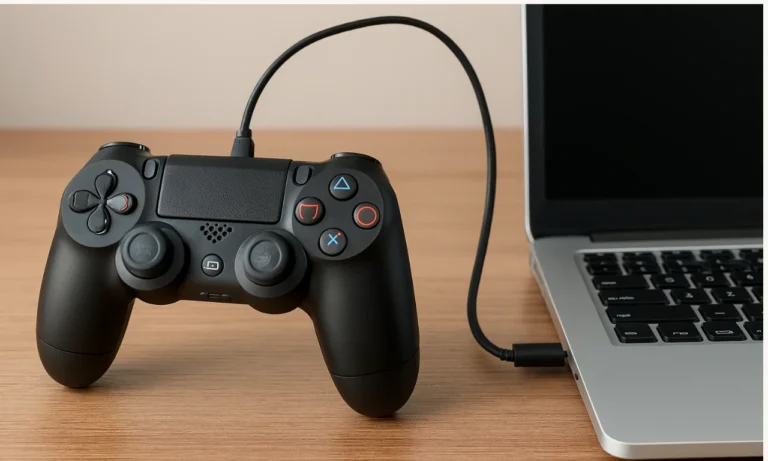
Connect Using a USB Cable
Wired method is usually faster and more reliable.
Plug USB-C cable end into your DualSense controller and the other into your PC.
Wait a few seconds, and Windows recognize it automatically.
If this is your first time connecting, Windows will install the drivers for you. You might see a small notification pop up saying it’s setting up the device. Give it a moment, and your controller is ready to use.
Open a game or test it on Gamepad Tester to make sure all buttons and triggers respond correctly.
One nice thing about the wired setup is that it also charges your controller while you play. So, if your gaming sessions are long, this is the best way to go.
Connect via Bluetooth (Wireless Setup)
If you love gaming while moving freely, Bluetooth is a solid choice.
First, turn on Bluetooth on your computer.
Then, on your controller, press and hold the PlayStation button and the Create button at the same time for about five seconds until the light bar starts flashing blue, that means it’s in pairing mode.
Back on your PC, click Add device, then choose Bluetooth. Your computer will start searching for nearby devices. After a few seconds, you’ll see Wireless Controller pop up on the list. Select it.
The light on your controller will change to a steady color, to confirm its pairing.
Keep in mind, Bluetooth range can vary. If you’re sitting far from your PC or crowded by other wireless devices, you might experience a slight lag. But for most setups, it works fine.
How to Set Up DualSense Controller on Steam
means you won’t need extra software because Steam has native support for PS5 controllers, Which.
Here’s what to do:
Launch Steam.
Go to the Steam menu in the top left, and select Settings.
Open Controller then General Controller Settings.
Check the box for PlayStation Configuration Support.
Your controller should now appear under “Detected Controllers.”
You can test it right there or even customize it for each game. Adjust triggers, remap buttons, or tweak the gyro settings if you like using motion control.
Every time you connect your controller, Steam will detect it instantly.
How to Test Your PS5 Controller on PC
Now for the fun part. Once you’ve connected your DualSense, it’s smart to test if everything’s working as it should. You don’t want to launch a game only to find your right trigger or thumbstick isn’t responding. So, you can use both built-in tools and online testers to confirm everything works as it should.
Test with Online Gamepad Tester
The fastest way to check if your DualSense is working perfectly is through Gamepad Tester.
Open the site, connect your controller, and start pressing buttons. You’ll see every input light up on the screen. Move the analog sticks and check if both axes respond smoothly. Pull the triggers halfway to see if the pressure sensors work correctly. You can even check the vibration by selecting the test option if your browser supports it.
This test only takes a minute but saves a lot efforts.
Test Using Windows Game Controller Settings
Windows also has a built-in tester. Here’s how to open it:
Press Windows + R, type joy.cpl, then press Enter.
Select your Wireless Controller from the list and Click Properties.
You’ll see a button test window where every press or movement is tracked. It’s not fancy, but it works well for diagnosing button or joystick issues.

How to Fix a PS5 Controller That Isn’t Working on PC
Sometimes, your controller just refuses to cooperate. Don’t worry. It happens to all of us.
1. Restart and Reconnect
Unplug the controller or unpair it from Bluetooth, then reconnect it. Sometimes, the system just needs a quick reset.
2. Update Drivers
Old or missing drivers are a common culprit.
Open Device Manager on your PC, expand the Bluetooth or Human Interface Devices list, and look for any warning icons.
Uninstall the DualSense driver, then reconnect the controller so Windows can install a fresh one. It sounds technical, but it’s usually quick and painless.

3. Use a Different USB Cable or Port
Cables go bad more often than you’d think. Try another one or use a different USB port, preferably on the back of your PC where the connection is stronger.
4. Check for Interference (Bluetooth)
If you’re going wireless, make sure there are not too many devices using Bluetooth nearby. The DualSense likes to stay loyal to the last device it was connected to. Hold the PlayStation and Create buttons until the light bar flashes, then reconnect it to your PC.
5. Update the Controller Firmware
Connect your controller to a PS5 console or use Sony’s Firmware Updater for Windows to keep it up to date. Outdated firmware can cause lag or detection problems on PC.
Bonus: Customize Your DualSense Settings
Here’s where you can make your setup feel personal.
On Steam or through DS4Windows, you can remap buttons, adjust trigger sensitivity, and even disable haptic feedback if you prefer a lighter touch.
Experiment until it feels just right. Everyone’s playstyle is different, find what fits yours.

FAQs About Connecting and Testing PS5 Controllers on PC
1. How do I test my DualSense controller on PC?
Go to GamepadTester.com, connect your controller, and check the input display. You’ll see if every button and joystick works correctly.
2. How to check if a controller is working on PC?
Use Windows Game Controller settings (joy.cpl) or online testers. Move sticks, press buttons, and see if inputs register instantly.
3. Can I use DualSense features like adaptive triggers on PC?
Yes, but not all games support them. Titles like Death Stranding Director’s Cut and Metro Exodus Enhanced Edition use them beautifully on PC.
4. How do I fix unresponsive buttons or drift?
If certain buttons don’t register, check for dust or debris. For stick drift, recalibrate the controller in Steam settings or use GamepadTester to identify the problem before repairing or replacing.
5. How to test if your controller is broken?
If multiple buttons don’t work in GamepadTester or in Windows, try it on another PC or console. If the same issue happens there, your controller may need servicing.
6. Can I use my PS5 controller for non-Steam games?
Absolutely. Use DS4Windows or connect through Bluetooth. Just make sure your game recognizes generic controller input (XInput).
7. My controller disconnects randomly. Why?
Usually, it’s Bluetooth interference or low battery. Try a wired connection or move closer to your PC.
Tips for Better DualSense Experience on PC
- Use a cable if you’re into competitive gaming. It eliminates latency.
- Keep drivers updated to avoid sudden disconnections.
- Avoid USB hubs if possible. Plug directly into your motherboard.
- Calibrate your sticks using Steam or window calibration tool.
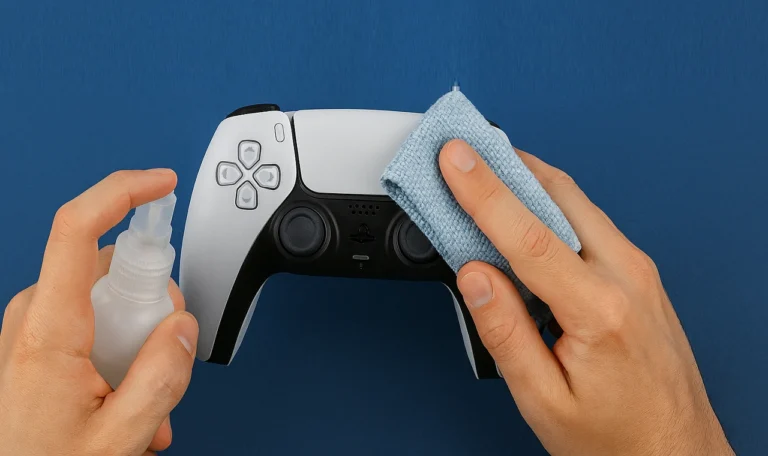
- Clean your controller every few weeks. Dust buildup can cause unresponsive buttons.
How to Know If Your Controller Is Broken
This one’s easy to confuse. You connect your controller, and nothing happens.
Does that mean it’s broken?
Not necessarily.
Before declaring it dead, check the USB cable. Try another one. Then test on a different device, maybe your phone or your PS5. If it works there, the issue is with your PC, not the controller.
But if it doesn’t power on at all, even after charging, then yes, it could be a hardware issue. In that case, reach out to PlayStation Support or a repair shop.
Just remember, true hardware failure is pretty rare. Most problems are driver or connection related.
Now you know exactly how to check and fix it, if your controller is behaving weird or inputs feel off.