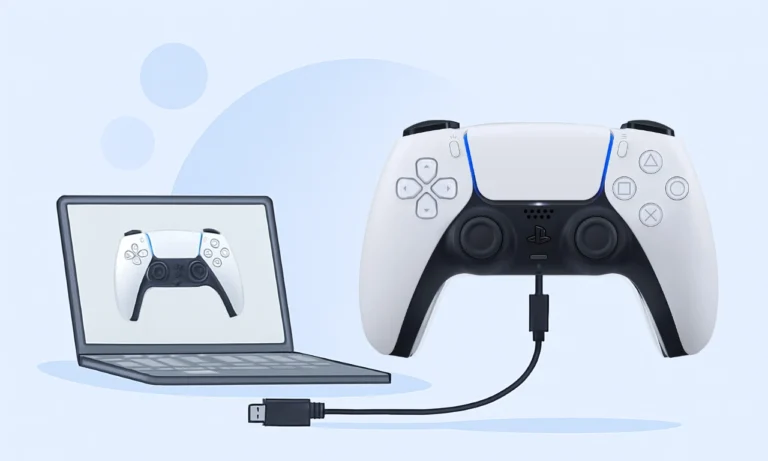
How to Fix a Gamepad Not Detected on Windows 10 or 11
You plug in your controller, ready to play your favorite game, but nothing happens. No lights, no vibration, and no response from Windows. Annoying, right?
Don’t worry! This is one of the most common issues PC gamers run into. Whether you’re using an Xbox controller, a PlayStation DualSense, or a generic USB gamepad, Windows sometimes fails to detect the device correctly.
The good news is that most detection problems can be fixed without replacing your controller. A few settings, driver updates, or connection tweaks can often bring it back to life.
What “Not Detected” Actually Means
When Windows doesn’t detect your controller, it usually falls into one of two categories:
- Completely undetected: The controller doesn’t appear in Device Manager or Game Controller settings.
- Detected but unresponsive: The gamepad shows up, but none of the buttons, triggers, or sticks react.
You can confirm which type of problem you’re dealing with by testing your controller on another PC or using GamepadTester.co. If no input appears at all, there’s a good chance the cable or controller itself is faulty.
Common Reasons Why Gamepad Not Detected on Windows
There are several possible causes behind this issue:
- Loose or damaged USB cable
- Faulty or low-power USB port
- Missing or outdated drivers
- Wrong input mode (DInput or XInput)
- Power management turning off USB ports
- Bluetooth pairing errors
- Windows or firmware conflicts after an update
Now that you know the reasons, let’s go through the steps to fix it.
Step 1: Check the Basics First
Don’t overthink it yet. Most “not detected” errors happen because of something simple. Before changing settings or reinstalling drivers, go through these quick checks.
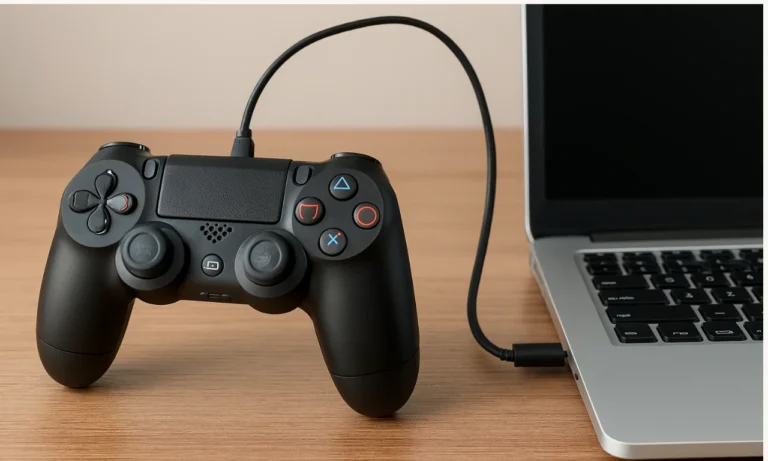
- Plug the controller into another USB port, preferably one on the back of your PC for better power delivery.
- If it uses a detachable cable, try a different one. Some cables only charge and do not transmit data.
- Restart the computer and reconnect the controller once Windows has fully loaded.
- Disconnect other USB devices that might conflict with the controller.
- Try the gamepad on another computer or console to confirm it works.
Using a wireless controller?
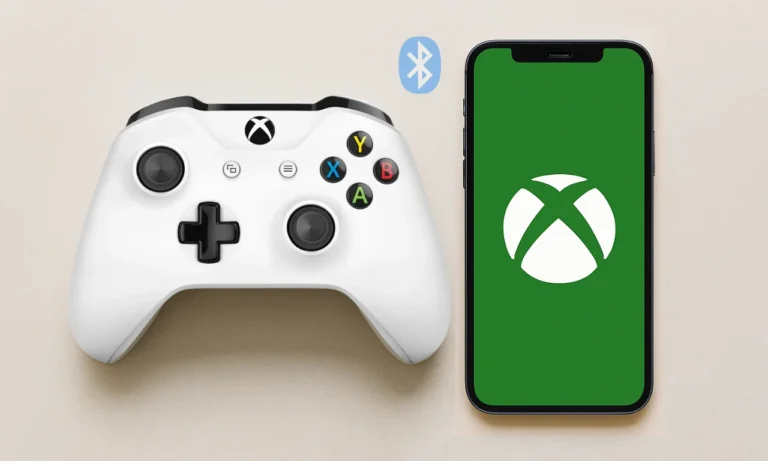
- Turn on Bluetooth on your PC/laptop.
- Put the controller in pairing mode.
- Unpair it from any phones or consoles that might still be connected.
After completing these steps, open Gamepad Tester and see if your controller responds or not.
Step 2: Update or Reinstall Controller Drivers
If your controller still doesn’t respond, the next thing to check is the drivers. These files act as the link between Windows and your controller. When they’re missing or outdated, your PC cannot communicate properly with the device.
Follow these steps:
- Press Windows + X and select Device Manager.
- Expand Human Interface Devices or Universal Serial Bus controllers.
- Look for any entry named Controller, Gamepad, or Unknown Device.
- Right-click it and choose Update driver, then select Search automatically for drivers.
- If that doesn’t help, right-click again and select Uninstall device. Unplug the controller, then plug it back in to reinstall fresh drivers.

Brand-specific tips:
- Xbox controllers: Windows usually installs these drivers automatically, but you can also update firmware through the Xbox Accessories app.
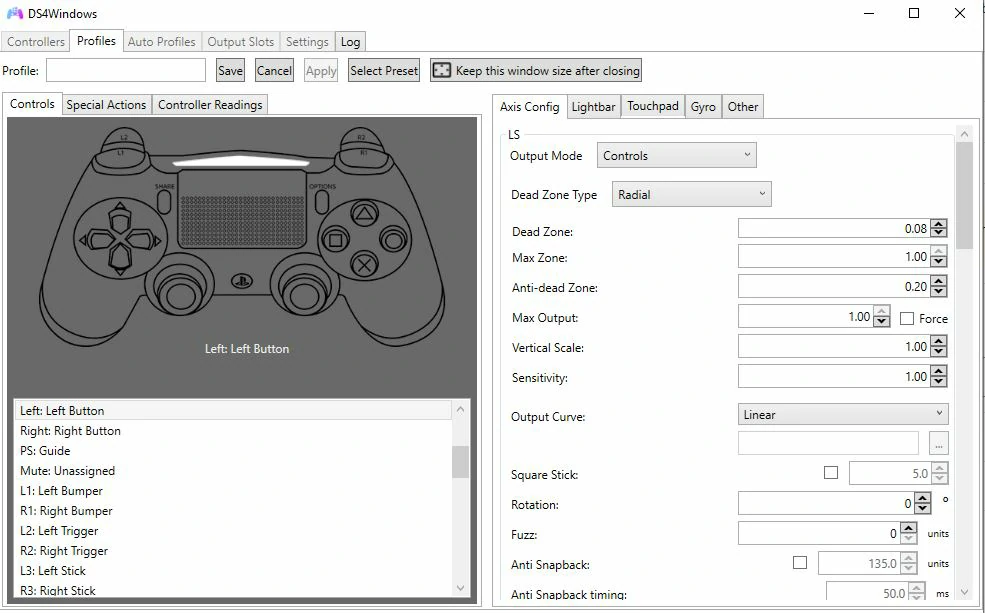
- PlayStation controllers: Use DS4Windows to get proper input recognition and button mapping.
- Generic or third-party gamepads: Visit the manufacturer’s website and download the exact driver for your model.
Wait a few seconds after reconnecting. You should see a Windows notification that the device is ready. Then, retest it to confirm it works.
Step 3: Calibrate and Test Your Controller in Windows
Sometimes, your controller is detected by Windows but doesn’t respond correctly. Maybe your joysticks drift, or the triggers don’t register properly. In that case, calibration can often fix it.
- Open Control Panel → Devices and Printers.
- Find your controller, right-click it, and select Game controller settings.
- Highlight your controller, then click Properties → Test.
- Press a few buttons, move both sticks, and pull the triggers to see how Windows reads the input.
If input looks uneven or delayed, click Calibrate and follow the wizard. This process helps Windows understand your controller’s exact range of motion and improves accuracy.
After you finish, reconnect your controller and test it again in your favorite game to make sure everything feels smooth and responsive.

Step 4: Check USB Power Management Settings
Windows sometimes turns off USB ports to save power, which can cause your controller to disconnect. It’s a small setting that often creates big headaches.
To fix this:
- Open Device Manager.
- Expand Universal Serial Bus controllers.
- Right-click each USB Root Hub and choose Properties.
- Go to the Power Management tab.
- Uncheck the box that says Allow the computer to turn off this device to save power.

After that, open your Power Options:
- Go to Control Panel → Power Options → Change plan settings → Advanced settings.
- Expand USB Settings, then USB selective suspend setting.
- Set it to Disabled and click Apply.
This ensures the controller remains active even during low-power states.

Step 5: Fix Bluetooth or Wireless Connection Issues
If you are using a wireless controller and it is not being detected, the problem could be with Bluetooth pairing or signal interference. These are easy to fix once you know where to look.
Try these steps:
- Open Settings → Bluetooth & Devices.
- Remove your controller from the list of paired devices.
- Activate pairing mode on your controller (for Xbox, press and hold the Pair button; for PS, hold Share + PS buttons).
- Reconnect it through Bluetooth and wait until it appears as “Connected.”
If your controller still does not connect or drops frequently:
- Update your Bluetooth adapter drivers in Device Manager.
- Try using a dedicated wireless dongle instead of built-in Bluetooth, especially on desktops.
- Restart your PC and reattempt pairing.
Test again using online gamepad tester, if inputs appear there but not inside games, the issue might be related to input mapping rather than detection.
A quick note for gamers: Bluetooth works best when there is no interference. Keep the controller close to your PC and avoid using it near wireless routers or metal surfaces that can weaken the signal.
Step 6: Use Windows Troubleshooters and Advanced Fixes
If your controller still isn’t detected after trying the previous steps, don’t worry. Windows includes built-in troubleshooters that can automatically detect and fix hidden hardware issues.
Here’s how to use them:
- Open Settings → System → Troubleshoot → Other troubleshooters.
- Scroll down and run the Hardware and Devices troubleshooter.
- Follow the instructions and let Windows fix any detected issues.
If the problem continues, you can try a more advanced approach:
- Press Windows + R, type devmgmt.msc, and press Enter to open Device Manager.
- From the top menu, click View → Show hidden devices.
- Expand Human Interface Devices or Universal Serial Bus controllers.
- Right-click and uninstall any grayed-out or duplicate controller entries.
You can also refresh your USB driver configuration using the Command Prompt (run it as Administrator):
set devmgr_show_nonpresent_devices=1
start devmgmt.msc
Then remove old, unused USB devices and restart your PC afterward.
Once your system boots back up, reconnect your controller and check it. If it registers input there, your hardware is fine, and the issue is fully resolved.
Step 7: Update Windows and Controller Firmware
Sometimes the easiest fix is simply updating everything. Outdated Windows builds or controller firmware can cause detection issues and random disconnections.
Follow these steps to update Windows:
- Open Settings → Windows Update.
- Click Check for updates.
- Install all available updates, including optional ones that may include driver or USB improvements.
Once Windows finishes updating, restart your computer before reconnecting your controller.
Now check for controller firmware updates:
- Xbox controllers: Open the Xbox Accessories app from the Microsoft Store. It will automatically detect your controller and prompt for any available firmware updates.
- PlayStation DualSense or DualShock: Download the official firmware updater tool from Sony’s website and follow the setup instructions.
- Other brands: Visit the manufacturer’s website and look for firmware or driver update utilities specific to your controller model.
After updating, reconnect your controller and test it again. If all buttons and sticks respond correctly, your controller should now be working normally.
Step 8: Optional Fixes and Workarounds
If your controller still refuses to work, don’t lose hope yet.
Some extra methods can help when the usual fixes don’t do the trick. These workarounds often solve rare or device-specific problems that slip past normal troubleshooting.
Try these options:
- Use a controller emulator: Tools like DS4Windows (for PlayStation) or X360ce can make your controller act like an Xbox gamepad. Many PC games recognize Xbox inputs automatically, which can fix detection issues.
- Try a powered USB hub: Some PCs do not provide enough voltage through standard USB ports. A powered hub gives your controller consistent power and prevents random disconnects.
- Temporarily disable antivirus or overlay apps: Security software, Discord overlays, or RGB control tools can sometimes block USB drivers or interfere with input detection. Turn them off briefly to test.
- Check for adapter compatibility: If you’re using an older controller, make sure you have the right USB or wireless adapter for your model. Generic adapters often cause communication problems.
After each fix, reconnect your controller and test it using Gamepad Tester. If the website still shows no input at all, it’s a strong sign the controller has a hardware fault or damaged circuit.
Preventive Tips
Once your controller is working again, it’s smart to keep it that way. A few small habits can help you avoid the same detection problems in the future.
Here are some easy ways to prevent issues:
- Unplug your controller properly: Always disconnect it from the USB port gently instead of pulling on the cable.
- Use high quality cables: Cheap or charging-only cables often cause connection drops. Stick to original or certified data cables.
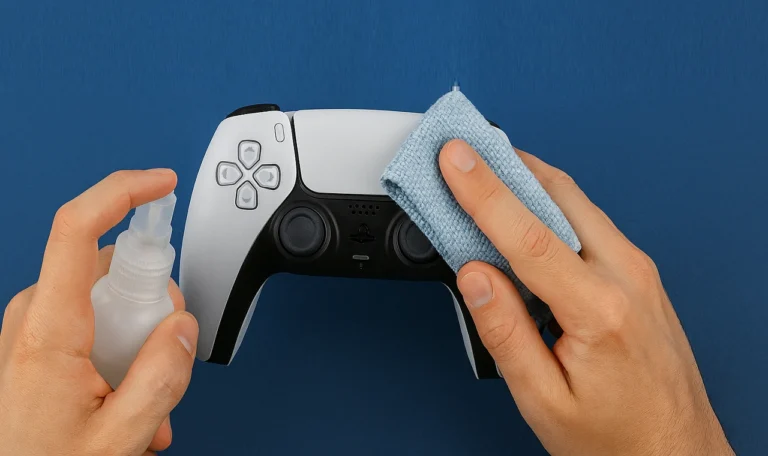
- Keep your USB ports clean: Dust or debris inside the ports can interrupt the connection. Use a soft brush or compressed air occasionally.
- Avoid bending or twisting the cable: Sharp bends weaken the wires over time and cause random disconnects.
- Test your controller regularly: Test the controller regularly to spot any early issues like drift or dead zones before they become serious.
These small steps make your controller last longer and help you avoid sudden connection issues when you’re about to play.
How to fix gamepad not detected?
If your gamepad is not detected, start by checking the basics: try a different USB port, use another cable, or test the controller on a second device. Then, update or reinstall your controller drivers from Device Manager. You can also disable USB power-saving options if the controller is sending input.
How to fix controller not working on PC Windows 11?
When your controller isn’t working on Windows 11, update your USB and Bluetooth drivers, make sure Windows is fully updated, and verify the controller’s input mode (XInput or DInput). If it still doesn’t respond, uninstall the device in Device Manager and reconnect it.
How to connect gamepad to Windows 11?
To connect a gamepad to Windows 11, plug it in through USB or pair it via Bluetooth. For wireless controllers, turn on Bluetooth in Settings → Bluetooth & Devices, then press the Pair button on your controller. Once connected, Windows will automatically install the required drivers.
Why is my PC not recognizing my USB controller?
Your PC might not recognize your USB controller due to a damaged cable, low-power USB port, or missing drivers. Try connecting the controller to a different port or system. If it still doesn’t show up, reinstall USB drivers and ensure Windows’ power management isn’t turning off your ports.
What to do if your controller won’t work on PC?
If your controller won’t work at all, unplug other USB devices, restart your PC, and connect it again. Update drivers, check calibration settings in Control Panel → Devices and Printers, and test your device on Gamepad Tester. If it works there, the problem likely lies within your game settings, not the hardware.
How do I control my PC with a controller on Windows 11?
You can control your PC with a controller by connecting it through USB or Bluetooth and mapping the buttons using apps like Steam Big Picture Mode or third-party tools such as DS4Windows. These tools let you navigate, launch games, and even emulate mouse functions directly from your controller.
Why is my controller connected but not working in game?
If your controller connects but doesn’t work inside games, check whether the game supports XInput or DInput. Some titles only recognize Xbox-style inputs. Updating drivers, switching input modes, or enabling controller support in the game settings usually fixes the issue.
In most cases, when Windows 10 or 11 doesn’t detect your controller, it usually comes down to simple issues like a faulty cable, outdated drivers, or a power setting that’s interfering. You almost never need to replace the controller.
Before assuming it is dead, head over to free online tester and run a quick test. It instantly shows whether your controller is sending any input.
Once you’ve gone through the fixes above, your gamepad should be back in action. Give it one last test, recalibrate if needed, and then get back to gaming with smooth, responsive controls.