How to Connect an Xbox Controller to an iPhone (Full Compatibility Guide)
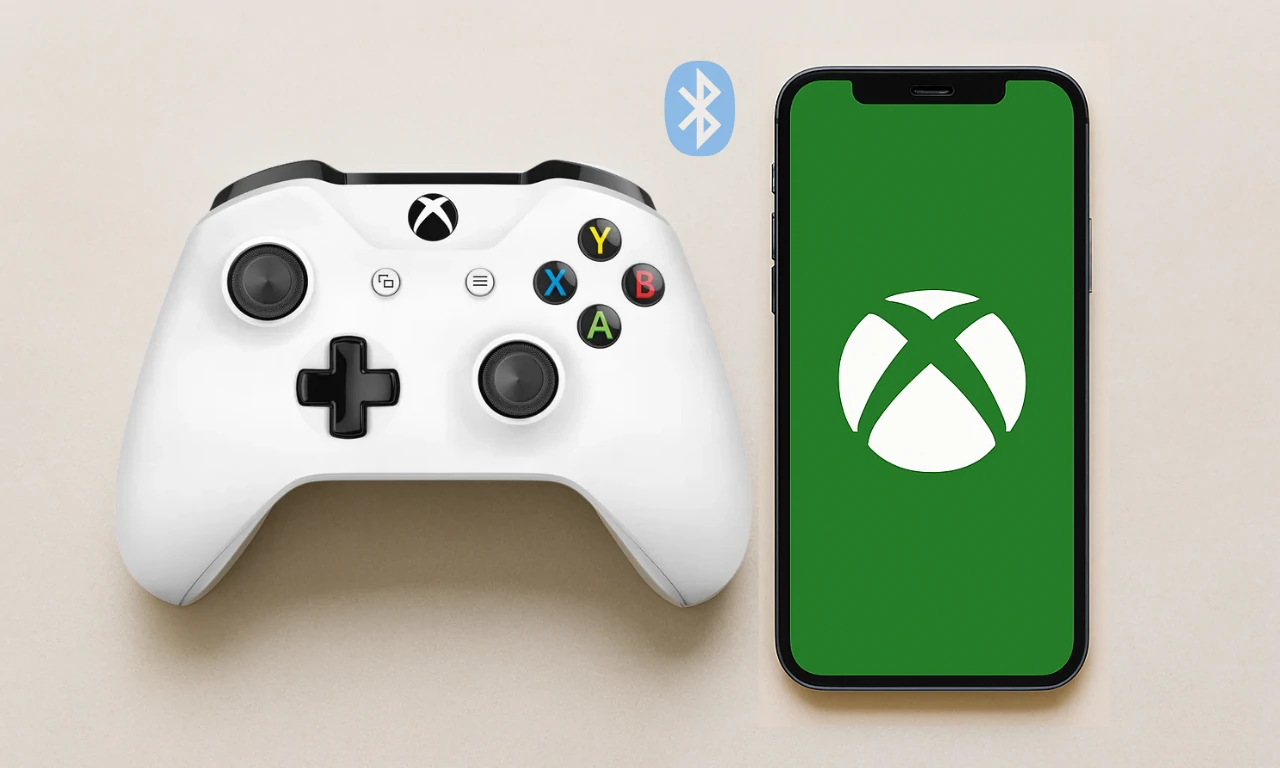
Connecting an Xbox controller to an iPhone feels pretty easy on paper, but sometimes reality throws a curveball. iPhones support modern Xbox controllers through Bluetooth, though not every controller model behaves the same. I learned this the first time I tried to connect an old controller and my phone acted like it didn’t even exist.
For a minute I kept blaming the phone until I realized the controller was from the pre-Bluetooth era. That was a small facepalm moment.
Most controllers from the Xbox Series X and Series S line pair smoothly.
Updated Xbox One controllers with built-in Bluetooth usually behave nicely too. As long as your iPhone is running a reasonably recent iOS version, the connection shouldn’t be a nightmare. Still, it’s worth knowing that quirks happen. Sometimes Bluetooth takes a nap and needs a little nudge.
Anyway, once you know what your controller supports, everything else gets easier.
Checking Which Xbox Controller You Have
Before pairing anything, double check the model. It sounds obvious, but if you have more than one controller lying around, they can look almost identical.
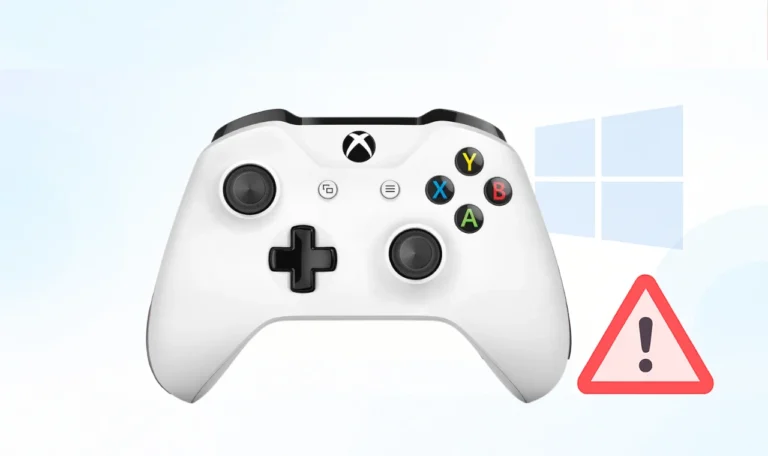
A quick visual clue helps. If the top front plate blends into the rest of the body, it’s usually the Bluetooth version. If the top is a separate glossy shell, it’s probably the older non-Bluetooth model. Those won’t pair with an iPhone no matter how many times you mash the sync button.
The good news is that newer controllers like the Xbox Elite Series 2, the Series X and S controllers, and even the Xbox Adaptive Controller work fine with iPhone.
So yeah, take ten seconds to confirm the version. It saves twenty minutes of confusion later.
Make Sure Your iPhone Software Is Up to Date
iOS versions matter.
Apple has improved controller support a lot over recent updates. I remember trying to pair a controller on an older iOS version, and the Bluetooth menu just kept ignoring it. After updating to the latest version, everything suddenly worked like nothing had happened.
Kinda annoying, but also a relief.
If you’re running a much older device, you might see random pairing issues, skipped inputs, or the controller refusing to show up. Before pulling your hair out, check for software updates. Even a minor version bump can fix compatibility bugs behind the scenes.
Pairing an Xbox Controller With Your iPhone
Once you’ve confirmed compatibility, pairing is usually smooth.
Open your iPhone settings, hop into Bluetooth, and keep that screen visible. Don’t switch apps during pairing because sometimes the phone pauses scanning.
Press and hold the sync button on your controller until the Xbox logo begins flashing. That flash means it’s looking for something to pair with. The first time I tried it, the controller was blinking like it was ready, but my phone acted like nothing was happening. I turned Bluetooth off and back on, let out an unnecessary sigh, and then the controller finally showed up.
Tap the controller name and give it a moment to establish the connection.
What to Do If Your Controller Doesn’t Show Up
Sometimes the iPhone refuses to see the controller even though everything looks right. Don’t panic. The simplest fix is usually toggling Bluetooth off and back on. It feels silly, but it works more often than you’d think.
Another trick is holding the sync button a bit longer. Some controllers fall back into their standard wireless mode too quickly if you release early. Give it a couple extra seconds. If that still fails, restart your controller. Power cycles are underrated.
Now here’s the weird fix. Move the controller away from your phone a little. Too close can somehow confuse Bluetooth, which makes no sense but I’ve seen it happen. The moment I slid my controller an arm’s length away, it instantly appeared in the Bluetooth list like nothing had been wrong.
Switching Between Xbox, PC, and iPhone
If you jump back and forth between devices, your controller might try to reconnect to your Xbox or PC instead of your iPhone. This caused me more confusion than I’d like to admit.
To switch cleanly, unpair it from the old device or turn the other device off for a moment. iPhones usually remember the controller after the first pairing, so future connections are quicker. Holding the sync button forces it into pairing mode again if it clings to a previous device too strongly.
Sometimes I pick up the controller expecting it to reconnect, and it silently wakes up my Xbox in the other room. That’s always fun.
Testing Your Xbox Controller on iPhone
After pairing, you might want to check every button, stick, and trigger properly, you can test your controller here.
It shows immediate responses, which helps identify drift, sticky inputs, or dead zones. Honestly, I’ve used it more than once just to confirm my controller wasn’t acting up during long gaming sessions.
Small Bluetooth Quirks You Might Notice
Even with everything working, you might spot tiny hiccups. A moment of input lag, a quick disconnect when your battery dips, or interference from wireless earbuds. Once I was racing in a mobile game and my controller randomly paused. For a second I thought I hit a ghost button, but it turned out my Bluetooth headphones caused interference.
Charge the controller. Low battery Bluetooth behavior can be dramatic in the worst ways.
Another thing people forget is that controller firmware matters. Updating it on a PC or Xbox console can solve weird behavior on iPhone. It feels unnecessary, but those updates patch real issues.
Using Your Controller Across Games and Apps
Most games that support controllers work nicely once everything is connected. Apple Arcade titles tend to behave the best. Cloud gaming apps also recognize Xbox controllers pretty well. I tried Clear Visions shooting game and was surprised how responsive everything felt. It didn’t feel like mobile gaming at all.
However, not every game on the App Store supports external controllers. Sometimes only the menus respond but the gameplay doesn’t. I ran into that once and kept wondering what I broke. Turned out the game simply didn’t support controllers at all.
Some games let you remap controls inside their settings, so if a button feels off, check their options.
Troubleshooting Lag, Disconnects, and Odd Behavior
If your controller keeps disconnecting, forgetting the device in Bluetooth settings and re-pairing usually fixes it. Restarting the iPhone also helps when the OS gets stuck in a stale Bluetooth session.
Another trick is pointing the controller directly toward the phone. Sounds goofy, but even a metal mug on your desk can interfere with the signal.
Now for the weird fix that shouldn’t work but somehow does. Turn on airplane mode, then manually enable Bluetooth while airplane mode stays on. This wipes out competing signals and gives the controller a cleaner connection.
And if the controller still behaves strangely, it’s worth testing it again to see if stick drift or hardware issues are creeping in.
Wrapping Things Up
Once everything is paired and working, gaming on an iPhone with an Xbox controller feels surprisingly natural.
You stop fighting touchscreen controls and start playing the way you’re used to. And if anything acts up along the way, don’t stress too much. Bluetooth can be picky, but most issues have simple fixes.
If you want to connect other gadgets or different controller brands later, you can check the full guide when it’s ready. And if you’re wondering whether your Xbox controller is behaving perfectly right now, you can test your controller here and get instant feedback.