How to Connect Xbox One Controller to PC via USB, Bluetooth, or Adapter
When you first try to connect Xbox One controller to a PC, it looks straightforward. You plug it in, Windows reacts, and everything should flow. At least, that’s the idea.
The first time I tried it on my gaming laptop, nothing reacted for a good ten seconds. I tapped the controller like it owed me money, unplugged the cable, tried again, and suddenly it sprang to life. I felt both relieved and slightly annoyed, but hey, it worked in the end.
Games just feel different with a controller sometimes. Racing games glide smoother, and platformers offer that comfy thumb precision you just don’t get with a keyboard.
Anyway, let’s walk through the most common ways to get everything connected.
Connecting with a USB Cable
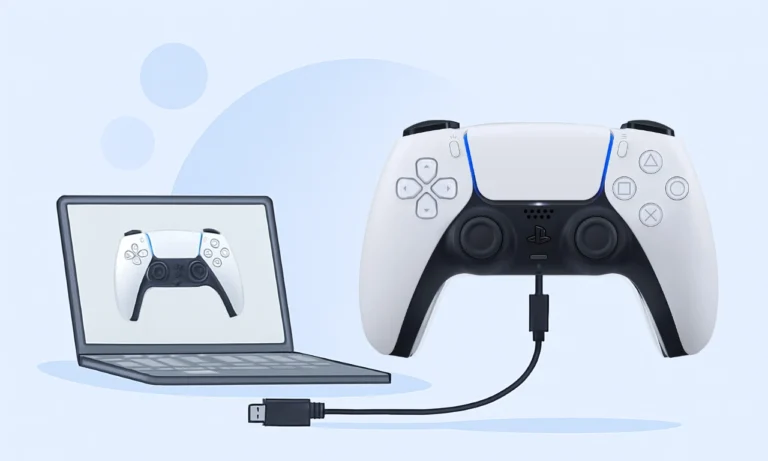
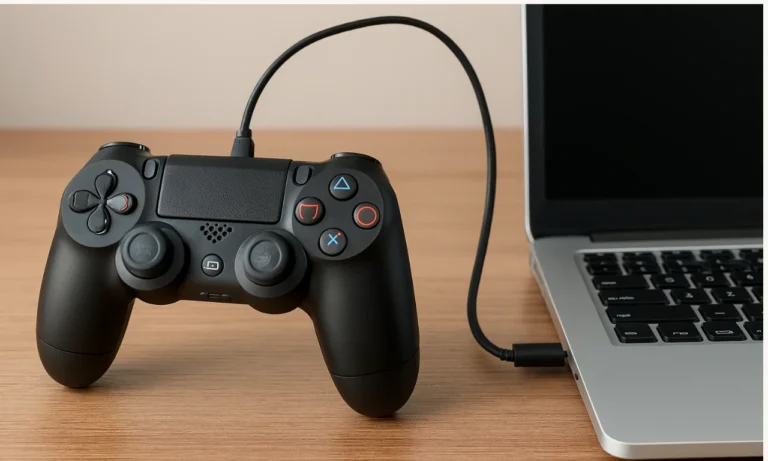
Using a USB cable to connect an Xbox One controller to a PC is the simplest route. Most Xbox One controllers use micro-USB. You plug the cable into the controller, slide the other end into your PC, and wait a moment. Windows usually installs some drivers quietly in the background. You might notice the controller light flicker while the system figures things out. Just let it think.
Otherwise go to computer management and check that your drivers are properly installed or update them.

When I tried this on a tiny office PC once, it ignored the controller until I switched USB ports. It was such a tiny realization. A small success moment followed right after the reconnect, and I could finally scroll menus. If you see nothing happening, try a different cable. Cheap ones sometimes wiggle loose if you breathe on them wrong.
Connecting with Bluetooth
If you prefer fewer cables crossing your desk, Bluetooth might feel fresher.
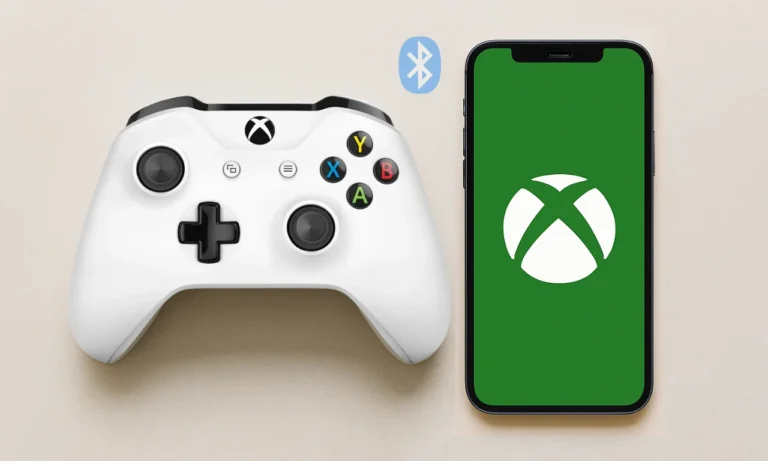
Not all Xbox One controllers include Bluetooth, though. The newer models do. You can usually tell by looking at the plastic around the Xbox button. If it’s the same material as the controller shell, then congrats, you’ve probably got Bluetooth built in.
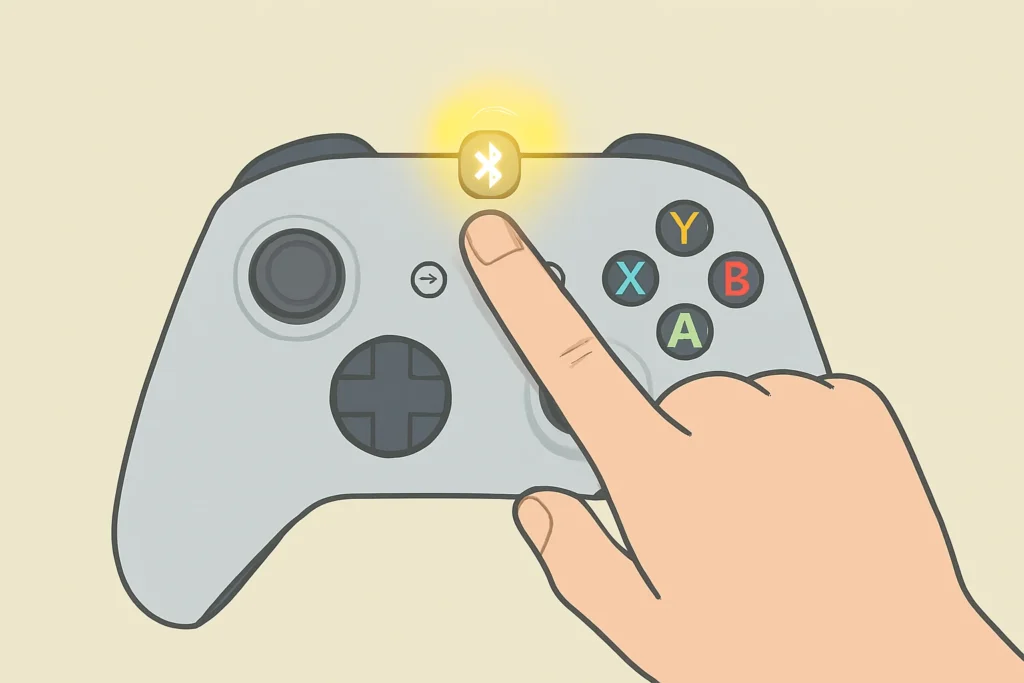
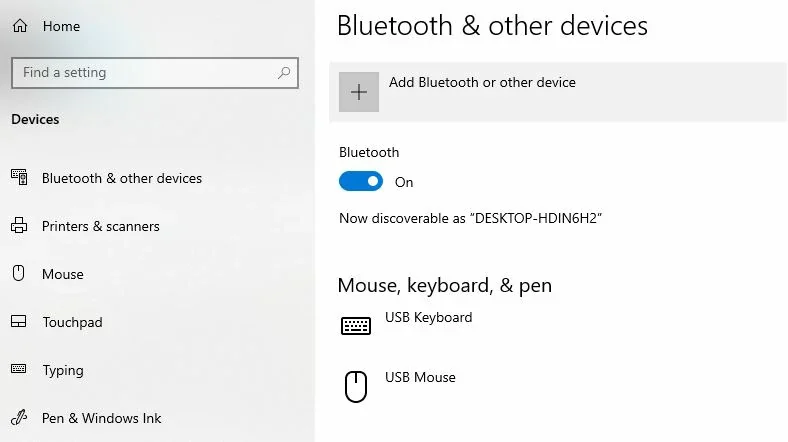
To connect, open your Windows settings, toggle Bluetooth on, click add device, then hold the pairing button on the controller. The light will start pulsing. Your PC should see it after a second or two. Honestly, sometimes the pairing disappears before you click, which feels silly.
One trick that helped me was toggling Bluetooth off and back on. The second attempt usually lands smoothly. When it finally syncs, that tiny click of success feels nice.
Using the Xbox Wireless Adapter
Another option is using Microsoft’s Xbox Wireless Adapter for Windows. It’s a little USB dongle that communicates on Xbox’s proprietary wireless tech.
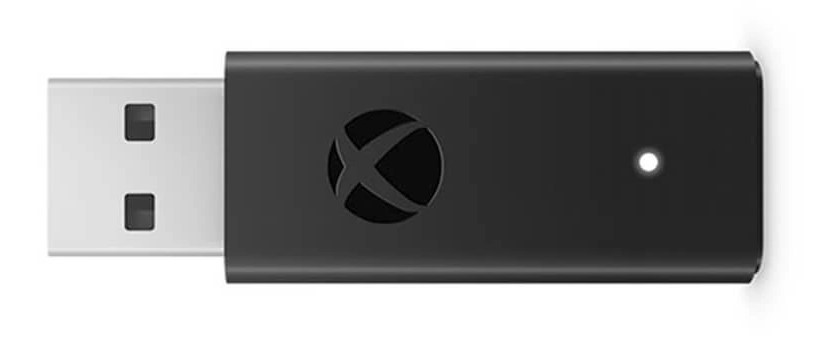
Some players swear it reduces input lag and improves range, especially if you’re gaming from a couch halfway across the room.
Just plug it in, tap the adapter’s pairing button, then tap the pairing button on the controller. They usually link in a heartbeat.
I once tested this across my living room while streaming music and had zero hiccups. The connection felt steady and confident. Still, it’s an extra purchase, so weigh that before pulling the trigger.
Driver Support and OS Behavior
Most modern versions of Windows handle this stuff automatically. Windows 10 and Windows 11 are practically built with Xbox compatibility in mind. They shift menu prompts to the familiar colored buttons, which feels pretty slick. If you’re on older version of Windows, you might need to hunt down a driver, reboot your machine, and cross your fingers.
Troubleshooting Weird Problems
Sometimes the connection breaks, and you’ll wonder why. Maybe the controller light won’t steady, or Windows pretends nothing is plugged in. First, try unplugging and re-plugging fully. It sounds obvious, but loose connections happen. For Bluetooth, remove the controller from your device list and try re-pairing. If you’re running on batteries, try fresh ones.
A trick fix is disabling and re-enabling the controller inside Device Manager. It kind of wakes Windows up. And here’s the weird but sometimes works solution: unplug every USB device except your keyboard, then reconnect the controller. This forces Windows to shuffle priorities.
Configuring Things in Steam and Other Launchers
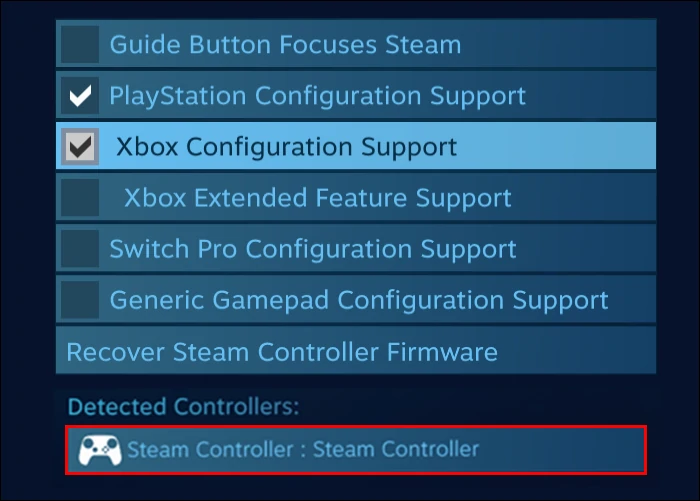
Steam can detect your Xbox controller automatically. Inside Steam’s big picture controller settings, you can tweak button layouts, adjust rumble, and dial in thumbstick sensitivity.
When I lived with a drifting stick for a month, adjusting the dead zone saved my sanity. Watching the camera slow its wobble felt like a moment of triumph.
Other launchers handle controllers differently, but most modern ones embrace the Xbox layout smoothly. It just feels native across the system, like the PC expected it.
Wired vs Wireless Latency
Input lag matters. Wired play tends to feel slightly sharper, especially in twitch shooters. Bluetooth might hitch if you’re running other wireless accessories nearby.
One night, I was using Bluetooth headphones while testing a controller, and I started missing jumps with embarrassing consistency. Turning off the headphones suddenly smoothed input again. The Xbox Wireless Adapter sits somewhere in the middle, almost wired-tight, without the actual wire.
On the flip side, wireless play looks clean and feels tidy on a desk. When you sink into a couch, the freedom is worth it. I bounce between both depending on mood. There’s no single best answer; you find your comfort.
Button Mapping and Firmware Updates
Sometimes your button layout won’t match what you expect. Maybe triggers don’t register, or bumpers flip incorrectly. Inside most games, you can remap controls easily. You can also download the Xbox Accessories app on Windows. It lets you update firmware, which improves stability. After updating mine, Bluetooth actually felt snappier. Not mind-blowing, but definitely smoother.
Another small fix involves clearing controller calibration data deep in Windows settings. After clearing mine once, a drifting trigger finally behaved. Felt like I’d solved a puzzle.

Battery Considerations
The Xbox One controller uses AA batteries or rechargeable packs. Vibration can drain power faster, so some players lower rumble intensity. Do this and play almost twice as long before swapping. If your controller randomly disconnects, the rechargeable pack might be fading. Try normal AA batteries for comparison.
Not Every Game Supports Controllers
Some older PC titles ignore controllers entirely. Strategy games often feel clunky with a thumbstick. You can use button mapping tools that pretend the controller is a keyboard, but it can get messy.
When I tried forcing this on an old indie shooter, my camera spun around like it was dizzy. I gave up after a minute.
Sometimes the keyboard just wins.
A Realization After a Few Sessions
After you connect an Xbox One controller to a PC a few times, you’ll start noticing subtle conveniences. Menu prompts shift automatically, vibration cues feel helpful, and analog movement brings smoother control. I had this realization during a late-night racing session with rain effects. The rumble felt precise, and I sat back thinking, wow, this is nice.
Cable Quality Actually Matters
I’ve used terrible cables before. One flimsy micro-USB disconnected if I twisted my wrist the wrong way. During a heated match, it cut vibration mid-corner, and I nearly wiped out. Upgrading to a higher quality cable made everything feel locked. Not expensive, just sturdy.
If You Want More Controller Help
If you ever plan to connect other brands, mobile devices, or weird controllers, you can check the full guide later once it’s ready. There’s a ton of crossover tips that help, especially if you’re new to gamepad settings. And honestly, once you’ve got everything hooked up, you can test your controller to make sure every button responds correctly. It’s useful for spotting sticky triggers or thumb stick drift early.
So, connecting an Xbox One controller to a PC might feel tricky at first, but once you land the right method, it becomes second nature. You’ll get comfortable swapping cables, repairing Bluetooth, and dialing in dead zones. It’s not rocket science. Just be patient when Windows gets grumpy.